It has been years since I have looked at Home Assistant. The current version uses containers and requires a dedicated computer, i.e. bare metal, or a virtual machine. This blog describes how to deploy Home Assistant as a KVM virtual machine.
KVM components
- KVM: Kernel Virtual Machines
- QEMU: A generic and open source machine emulator and virtualizer
- Libvirt: a toolkit to manage virtualization platforms
The primary interface for KVM is QEMU, but libvirt helps to create the virtual environments, including for instance network. I decided to not use libvirt though and use KVM and QEMU directly.
Linux kernel configuration
KVM is Linux in-kernel virtualization, so the kernel needs to be configured for it. It is described in the Gentoo QEMU wiki page. The quick summary is to create a file /usr/src/kernel-kconfig-qemu-host.config with the following contents:
CONFIG_VIRTUALIZATION=y
CONFIG_KVM=y
CONFIG_KVM_INTEL=y
CONFIG_KVM_AMD=y

CONFIG_VHOST_NET=y
CONFIG_HIGH_RES_TIMERS=y
CONFIG_HPET=y
CONFIG_COMPACTION=y
CONFIG_MIGRATION=y
CONFIG_KSM=y
CONFIG_SYSFS=y
CONFIG_PROC_FS=y
CONFIG_TRANSPARENT_HUGEPAGE=y
CONFIG_CGROUPS=y
CONFIG_KVM_HYPERV=y
Update as needed, e.g.
- remove CONFIG_KVM_INTEL or CONFIG_KVM_AMD depending on the CPU of the host
- remove CONFIG_KVM_HYPERV if Windows guests are not needed.
Then update the kernel settings:
# cd /usr/src/linux
# "./scripts/kconfig/merge_config.sh" ".config" "/usr/src/kernel-kconfig-qemu-host.config"
# make -j5 && make modules_install && make install
Check after rebooting that KVM is now supported:
# grep --color --extended-regexp "vmx|svm" "/proc/cpuinfo"
# ls -la /dev/kvm
Required software
This setup also needs userland software. The following Gentoo packages are needed:
- app-emulation/qemu: the QEMU software
Make sure to enable USE flags for
vnc, andusb. Optionally disable USE flags like-X,-alsa,-gtk,-opengland-oss. - net-misc/socat: a utility to manage QEMU clients
- net-misc/tigervnc: to view the screen of the VM
Home Assistant disk image
From the Home Assistant alternaive installation page a KVM/Proxmox image can be downloaded.
The image needs to be placed on the host, e.g. at /var/lib/kvm/images/haos_ova-17.2.qcow2.
Network configuration
Normally VMs use the hypervisor's virtual network, which is NAT-ed. Home Assistent however needs to be able to discover devices on the network and therefore needs direct network access. This can be achieved by using a network bridge.
The network bridge becomes the main interface, and the Ethernet port its slave. Note that this will only work with wired Ethernet, but not with wireless.
This can be achieved using Gentoo's Netifrc.
Create a file /etc/conf.d/net:
dns_domain_lo="fernhout.info"
config_eno1="null"
config_br0="null"
bridge_br0="eno1"
config_br0="dhcp"
bridge_forward_delay_br0=0
bridge_hello_time_br0=1000
and start the bridge at boot:
# cd /etc/init.d
# ln -s net.lo net.br0
# rc-config add net.br0
Note that a reboot is required.
QEMU commandline
The VM is started with a command qemu-system-x86_64, at least for x86_64 guests. For Home Assistant the following options are needed:
-m 2G: 2GB memory, recommended minimum for Home Assistant-smp 2: 2 CPUs, also a recommended minimum-cpu host: Same CPU as the host-accel kvm: Use KVM as hypervisor-display vnc=127.0.0.1:0: Use VNC to see the screen-net bridge,br=br0,helper=/usr/libexec/qemu-bridge-helper: Connect on bridge br0-net nic,model=virtio: Create a network interface card in the VM-device usb-ehci,id=ehci: Create a USB device in the VM-device usb-host,vendorid=0x10c4,productid=0xea60: Pass USB device with vendorid:productid to the VM, in this case a Zigbee gateway-smbios type=0,uefi=on: Boot using UEFI-monitor unix:qemu-haos-monitor.sock,server,nowait: Create a QEMU monitor socket, needed for graceful shutdowns-drive if=pflash,unit=0,readonly=on,file=/usr/share/edk2/OvmfX64/OVMF_CODE_4M.qcow2,format=qcow2: The firmware for booting UEFI-drive file=/var/lib/kvm/images/haos_ova-17.2.qcow2: The virtual machine image
OpenRC init script
The translation of the qemu command into an OpenRC init script is as follows:
#!/sbin/openrc-run
# /etc/init.d/haos - start Home Assistant OS qemu VM (config from /etc/conf.d/haos)

name="haos"
description="QEMU/KVM VM Home Assistant (haos)"
command="/usr/bin/qemu-system-x86_64"
pidfile="/run/${name}.pid"

# Provide defaults if not set
: "${bridgename:=br0}"
: "${kvm_image:=/var/lib/kvm/images/haos_ova-17.2.qcow2}"
: "${vnc_bind:=127.0.0.1:0}"
: "${usb_vendor:=0x10c4}"
: "${usb_product:=0xea60}"
: "${qemu_monitor_socket:=/var/run/qemu-haos-monitor.sock}"
: "${shutdown_time:=15}"

command_args="-m 2G -smp 2 -cpu host -accel kvm \
  -display vnc=${vnc_bind} \
  -net bridge,br=${bridgename},helper=/usr/libexec/qemu-bridge-helper \
  -net nic,model=virtio \
  -device usb-ehci,id=ehci \
  -device usb-host,vendorid=${usb_vendor},productid=${usb_product} \
  -smbios type=0,uefi=on \
  -monitor unix:${qemu_monitor_socket},server,nowait \
  -drive if=pflash,unit=0,readonly=on,file=/usr/share/edk2/OvmfX64/OVMF_CODE_4M.qcow2,format=qcow2 \
  -drive file=${kvm_image}"

depend() {
    need localmount
    need net.${bridgename}
}

start_pre() {
    checkpath --directory --mode 0755 /run
}

start() {
    ebegin "Starting ${name}"
    start-stop-daemon --start --quiet --background \
      --exec ${command} --chuid root --pidfile ${pidfile} --make-pidfile \
      -- ${command_args} || { eend 1 "failed"; return 1; }
    ret=$?
    eend $ret
}

stop() {
    ebegin "Stopping ${name}"
    if [ -f ${pidfile} ]; then
        echo system_powerdown | socat - UNIX-CONNECT:${qemu_monitor_socket}
        start-stop-daemon --stop --pidfile ${pidfile} --signal 0 --retry=${shutdown_time}
        ret=$?
    fi
    eend $ret
}
Save this as /etc/init.d/haos.
The interesting part is about stopping the service. Rather then just having start-stop-daemon just send a TERM signal, a command "system_powerdown" is sent to the VM using socat.
Check that it works
The service can now be started with
# /etc/init.d/haos start
Check the output with VNC:
$ ssh server -Y
$ vncviewer 127.0.0.1:0
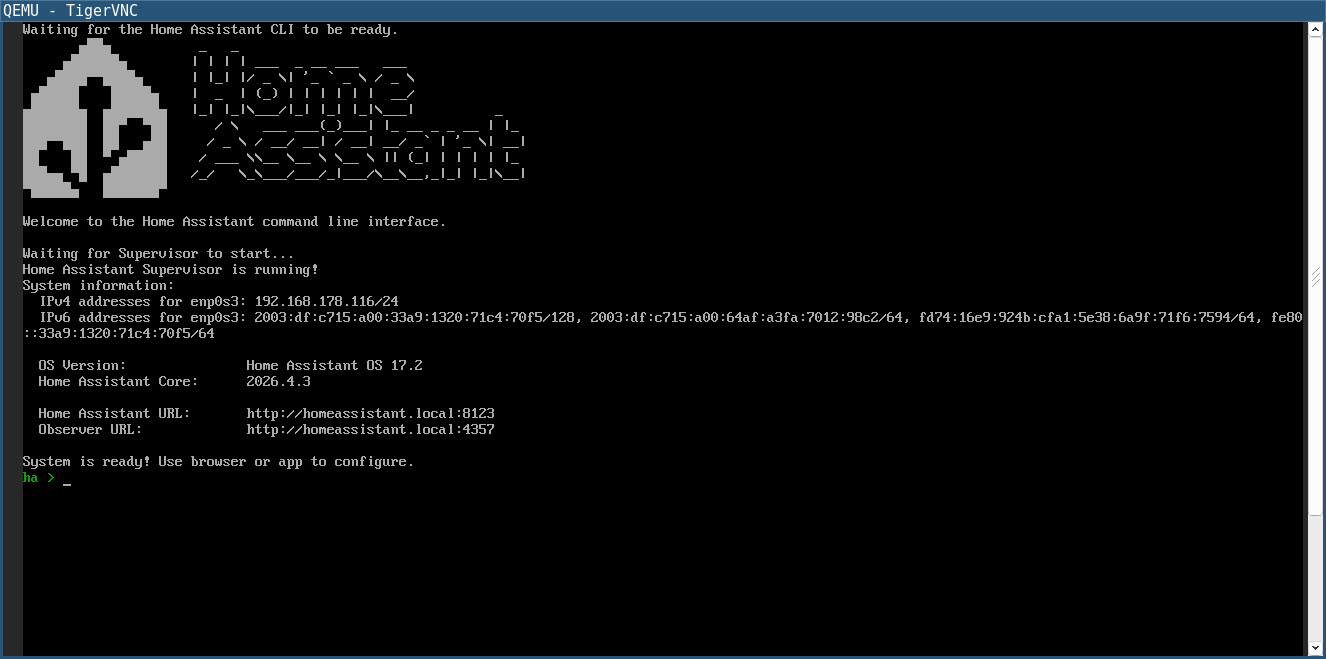
Access Home Assistant on the provided IP address and port.